
Thursday, September 14, 2006
Microsoft Security Updates for September 2006
Yes, it's the time of the month for the Microsoft updates to be automatically downloaded, or applied in some other administrative way. Well, this month's updates are composed of :
1 Critical update for MS Publisher
1 Important update for Reliable Multicast Program
1 Moderate update for Windows Indexing Service
See more from the MS Technet.
Tuesday, September 12, 2006
The New Apple iPod shuffle: world's smallest music player
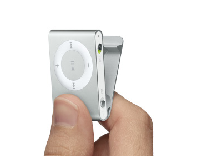 The new Apple iPod shuffle packs 1 GB of flash memory for only $79, and offers the portability of a matchcase. The new shuffle has a clip at the backside that makes it easy to carry, just slip on the clip to a shirt pocket and you're all set to go.
The iPod Shuffle page
Tech Specs page
Thursday, June 15, 2006
Removing Startup Items
Many of the bothersome issues that we have are caused by unwanted programs running at startup. Many applications would automatically configure itself to run whenever you turn on your system, and they are not just annoying, but they also take up memory that should be allocated somewhere else. Also, malware or spyware could also insert their own startup entry so that they could run together with your other startup items. Here are the ways to remove startup items in Windows.
1. Removing Programs in the Windows Startup Folder
Click on Start > All Programs > Startup Folder
Simply delete the items or programs that you want to prevent from starting up. You can also manually find the folder, just to be sure nothing is hidden. To open the folder, got to C: (or where your OS is installed) > Documents and Settings > All Users > Start Menu > Programs > Startup .
Look at the contents and delete what you know is unnecessary.
2. MSCONFIG
The Systems Configuration Utility is another place you need to visit make sure that the only programs running at startup are the ones you know acknowledge.
Again click on Start > Run. Type MSCONFIG at the Run box and press ENTER. The System Configuration Utility should open up. Select the STARTUP tab, and go throughout the list of Startup items. Uncheck those that you don't want to run at startup.
The entries in MSCONFIG may differ from the real names of applications. You might want to open windowsstartup.com and use their knowledgebase to search for the different startup items that you have.
Simply uncheck those unwanted entries and click on Apply and OK out of MSCONFIG. A restart would be asked for, if you're not doing anything else, just say Yes.
3. REGEDIT
The last resort would be to manually find the programs' entries on the registry. To access the Registry, just open another RUN box and type REGEDIT. On the Registry Editor, click on the plus (+) sign next to HKEY_LOCAL_MACHINE > SOFTWARE > MICROSOFT > WINDOWS > CURRENTVERSION > RUN. On the right panel, select the entry for the program and just delete it. Also look at the following location : HKEY_CURRENT_USER > SOFTWARE > MICROSOFT > WINDOWS > CURRENTVERSION > RUN.
Reminder: Be careful in editing or modifying the registy as it may cause you OS to be inoperable or other weird things to happen.
Happy Hunting!Thursday, May 25, 2006
Trying out Microsoft Office 2007 beta 2
You can now beta test the next Office suite from Microsoft by downloading or ordering a beta copy of Microsoft Office 2007 which you can use up to Feb. 1, 2007 (Expiration date for the trial when afterwards functionality would be reduced) If you are planning to download and test the beta, make sure to check the system requirements, as your system may not be able to support the applications included. Download requires registration.
Links:Download Microsoft Office 2007 beta 2
System requirements for Microsoft Office 2007
Sunday, April 02, 2006
Adding your most used folders to the Send To menu
Folders are the standards by which we categorize or group our files (I mean offline), and in my case, I have so many folders hidden inside main folders, hidden inside different partitions. Both for work or for personal use, using the Send To menu (of course accessible through the right-click of the mouse) is very useful because you can directly point files towards commonly used folders instead of going through the Windows Explorer and using the copy/cut-paste method to organize files. Here's a quick walkthrough to get your Send To menu as first option to transfer files:
- Look for the folder you want to include in the Send To menu. Right click on the folder and click on Send To and then Desktop(create shortcut). Now you have a shortcut on the desktop.
- Open My Computer and access the drive where you have your Windows installed. (most probably C:)
- Open the Documents and Settings folder and open the folder corresponding to your username.
- Open the Send To folder, where you can find the items that you see when you try to use the Send To menu. If you can't find this folder, then you need to go into Tools > Folder Options > View > Hidden Files and Folders > select Show hidden files and folders.
- Now, cut the shortcut that you've made on the desktop, and paste it inside the Send To folder.
- Do the same with whatever folder you want to include to the Send To menu.
Thursday, March 30, 2006
createTextRange vulnerability in IE: Disable Active scripting or use another browser
The flaw is caused by how Internet Explorer handles createTextRange tags, and could let malicious software run and install itself. Microsoft has not yet offered a patch, though it should be on the April 11 updates. Numerous websites have been identified that exploit the vulnerability. In a recent article from CNet it is reported that e-mail spams containing excerpts of BBC stories are being sent out, and readers are redirected to forged BBC webpages. Once the infected site is visited, a keylogger is pushed into the system, and user information like usernames and passwords are captured and collected.
Until the patch is released, users of Internet Explorer could do the following:
Disable active scripting:
- On the IE browser, click on Tools and select Internet Options .
- Click on the Security tab, click on Internet and then select Custom Level
- On the Security settings look for Scripting. Set Active Scripting to either Disable or Prompt. Click OK.
- Now back to the Internet Options, Click Local intranet, and then Custom Level. Repeat step no. 3.
Download and Use another browser :
Use Firefox or Opera as your browser.Update:
Microsoft has released a cumulative patch for IE, which is found in the Microsoft Security Bulletin. Together with the April 11 IE updates are patches for MDAC, Outlook Express and Frontpage.
Wednesday, March 29, 2006
Stories and Reactions to the Windows Vista Delay
Microsoft's announcement of another delay in the release of Windows Vista definitely made it to the tech headlines, as many anticipated the appearance of a Windows XP replacement before the end of the year. The move makes Windows Vista available to businesses November of this year and to the general public come January 2007. Here are some of the news items centering on the Windows Vista delay:
- What's Really Behind the Windows Vista Delay? (from Microsoft Watch)
- Windows Vista delay: Good news for Apple? (from Computerworld)
- Understanding Windows Vista's Delay (Yes, Another) (from Microsoft Monitor Blog)
- Microsoft tumbles, but setback seen as temporary (from CNN Money)
- Windows Vista delayed on quality, security concerns (from Security Focus)
- 60% Of Windows Vista Code To Be Rewritten (from Smart House)
- Microsoft: No Vista Code Changes (from Beta News)
- Microsoft Shares Drop on Windows Delay (from Yahoo! News)
- Vista Slip to Boost Linux Says Red Hat (from Computer Wire)
Subscribe to:
Posts (Atom)